Policy Holder Portal
As a policyholder, you can access policies, claims, and documents that were uploaded to your account. You can search for nearby authorized agents by providing location details such as location name or ZIP Code.
You can also get contact information of your agent, driving directions on the map, and the agent's availability.
When you purchase a policy, the system sends a welcome Email along with the login credentials to your registered email address. You can login to the Customer Application using these credentials, where you can access your details/preferences.
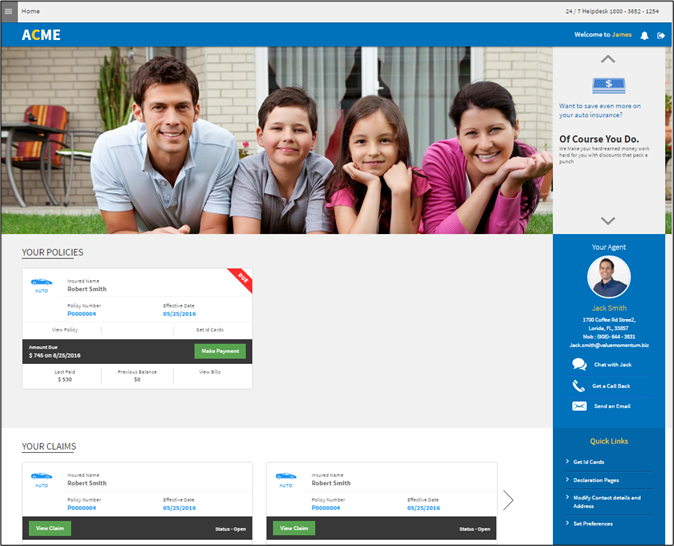
On this screen, you can view the following features:
- Your Policies: Here, you can find all the policies that you have purchased. And you can perform the following actions:
- Access the policy details
- Access ID cards (only for Auto Policy)
- Make payment for a policy
- View Bills
- Your Claims: Here, you can find all the claims filed against the loss occurred to the risk covered under an active policy. And you can perform the following actions:
- View the list of claims and their status
- Access the claim information
- Your Agent: Provides details through which you can contact the agent.
- Quick Links: Here, you can view the links to access various features such as Get Id Cards, Declaration Pages, Modify Contact details, and Address.
View Your Policies
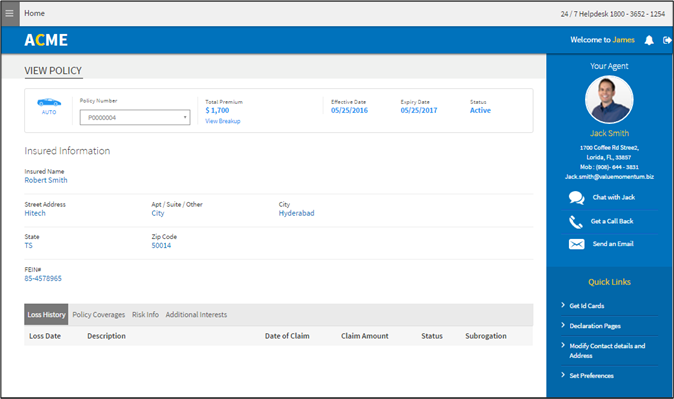
From dashboard, you can navigate to this screen by clicking View Policy option of a desired policy. Alternatively, you can also navigate to this screen by clicking Policies under menu on the header.
By default, the application displays the recent policy information. To view the information of a different policy, select policy number from the Policy Number dropdown list.
The details include the following:
- Insured Information – Displays insured details
- Loss History – Displays the list of losses recorded for a policy
- Policy Coverages – Displays the coverages that apply to that particular policy
- Risk Info – Displays the risk information provided for the policy. Example: For a vehicle insurance policy, you can view the information about the vehicles insured under this policy
- Additional Interests – Displays the list of additional individuals/business firms who are interested in any one or more of the risks.

File a Claim
From dashboard, you can navigate to this screen by clicking Claims. Alternatively, you can also navigate to this screen by clicking Claims under menu on the header.
Contact Your Agent
On the right pane, you can see your agent details and different ways to contact the agent for assistance. You can communicate with the agent through one of these options:
- Chat – Use this option to initiate a discussion with your agent
- Get a call back – Use this option to send a Call Back request to your agent
- Send an Email – Use this link to send an email to your agent.