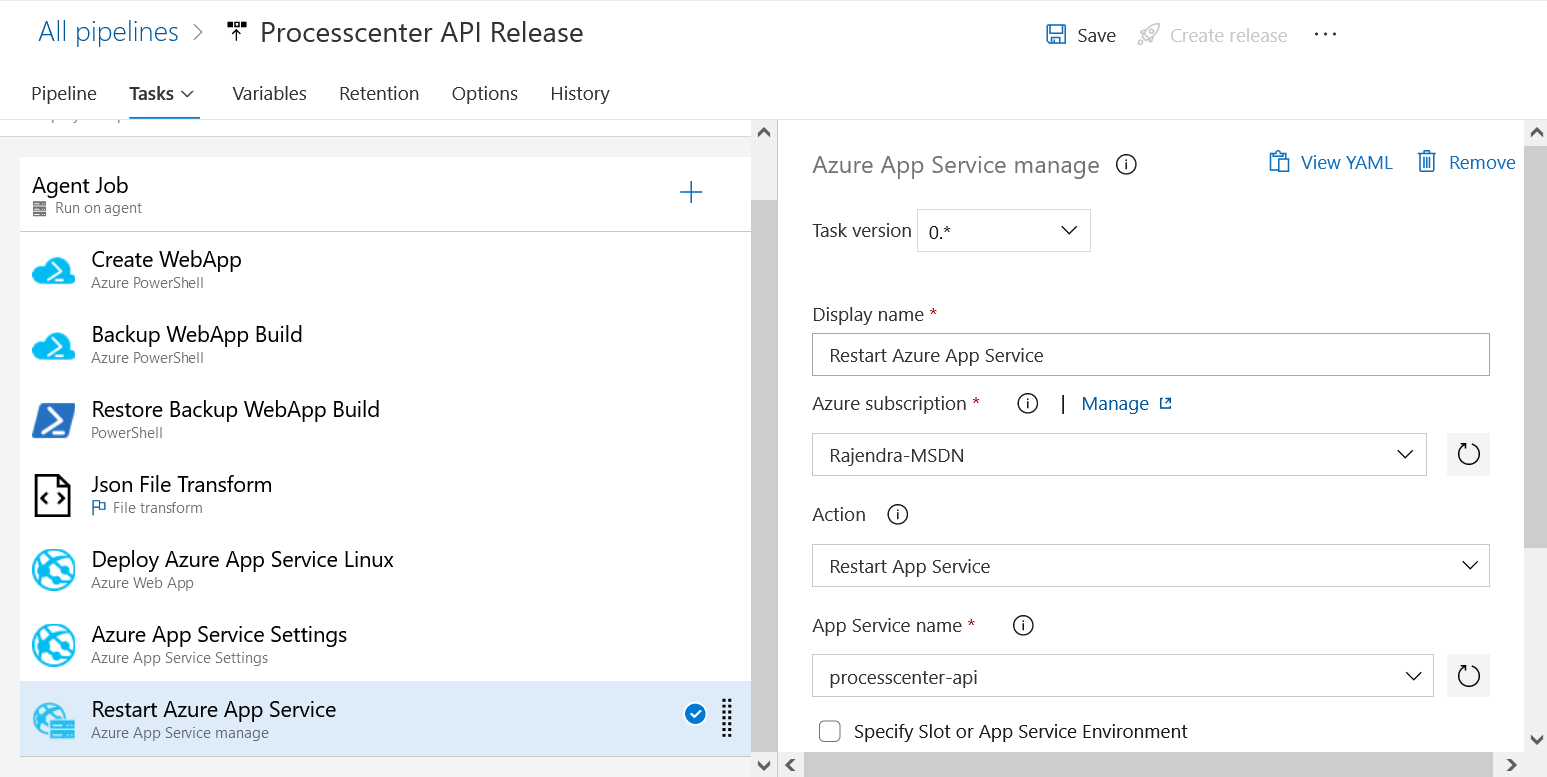
Configure Tasks
Configure the following tasks for API release.
Create WebApp
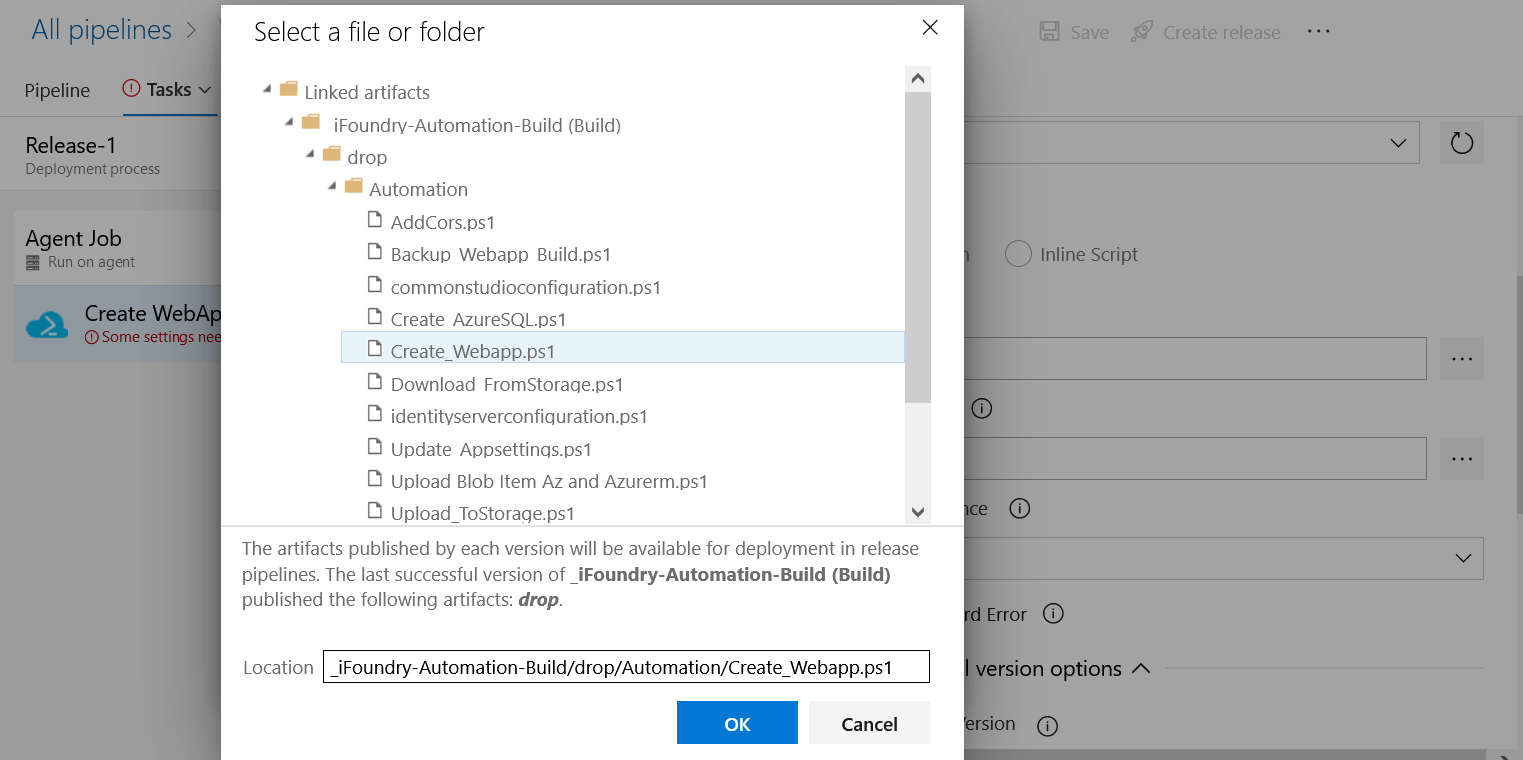
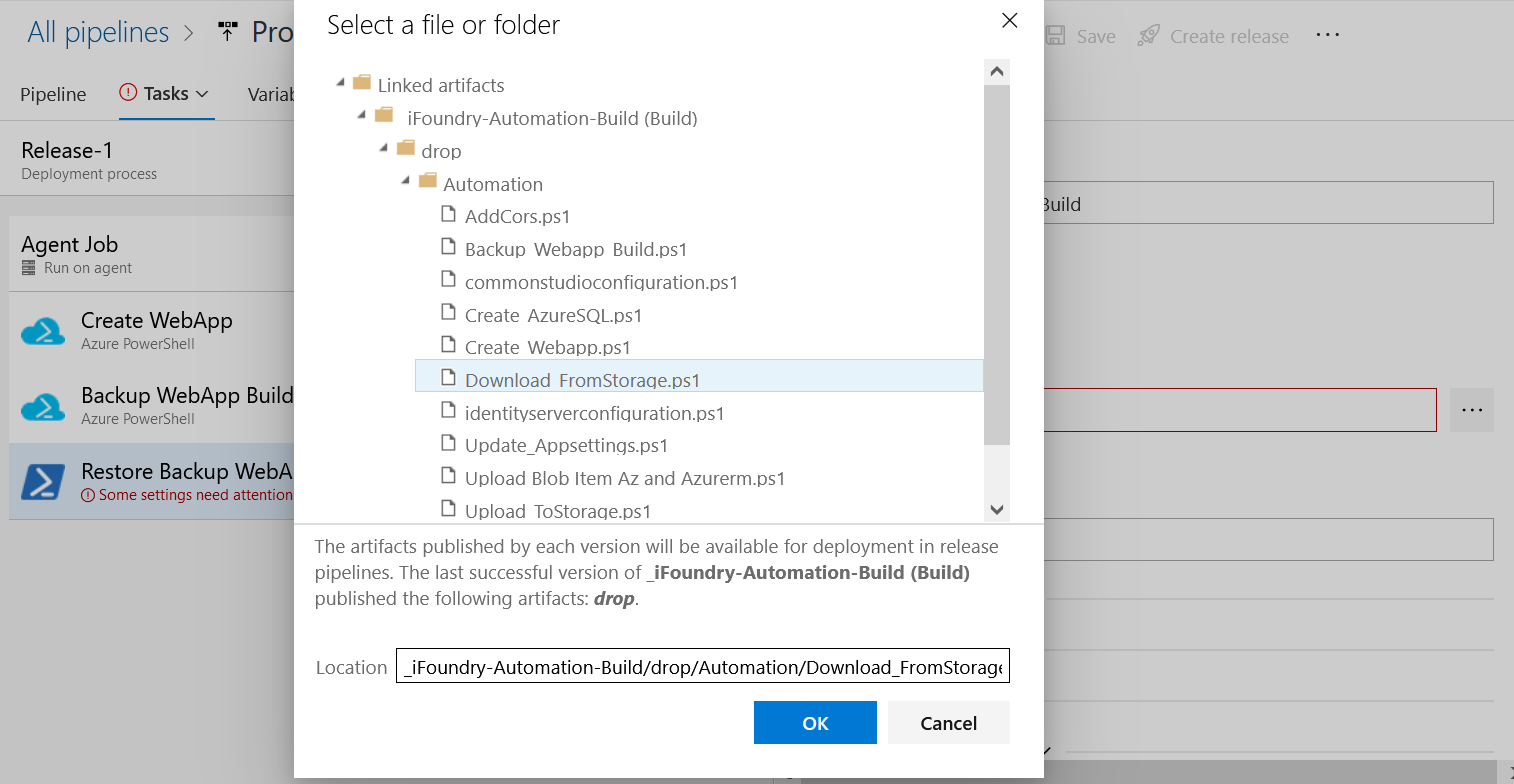
- Select Create WebApp and choose a subscription. Select the script path for the WebApp as shown in the image and select Ok.
- Add the script argument in the Script Argument Section.
-resourceGroupName "$(_ResourceGroupName)" -Location "$(_Location)" -ASPName "$(AppServicePlanName)" -ASPSize "$(AppServicePlanSize)" -AppEnvironment "$(DeployEnvironment)" -WebAppName "$(AppName)" -SQLServerName "$(SQLServerName)" - Select the Latest installed version under Azure PowerShell Version.
- Select "Use PowerShell Core" under Advanced.
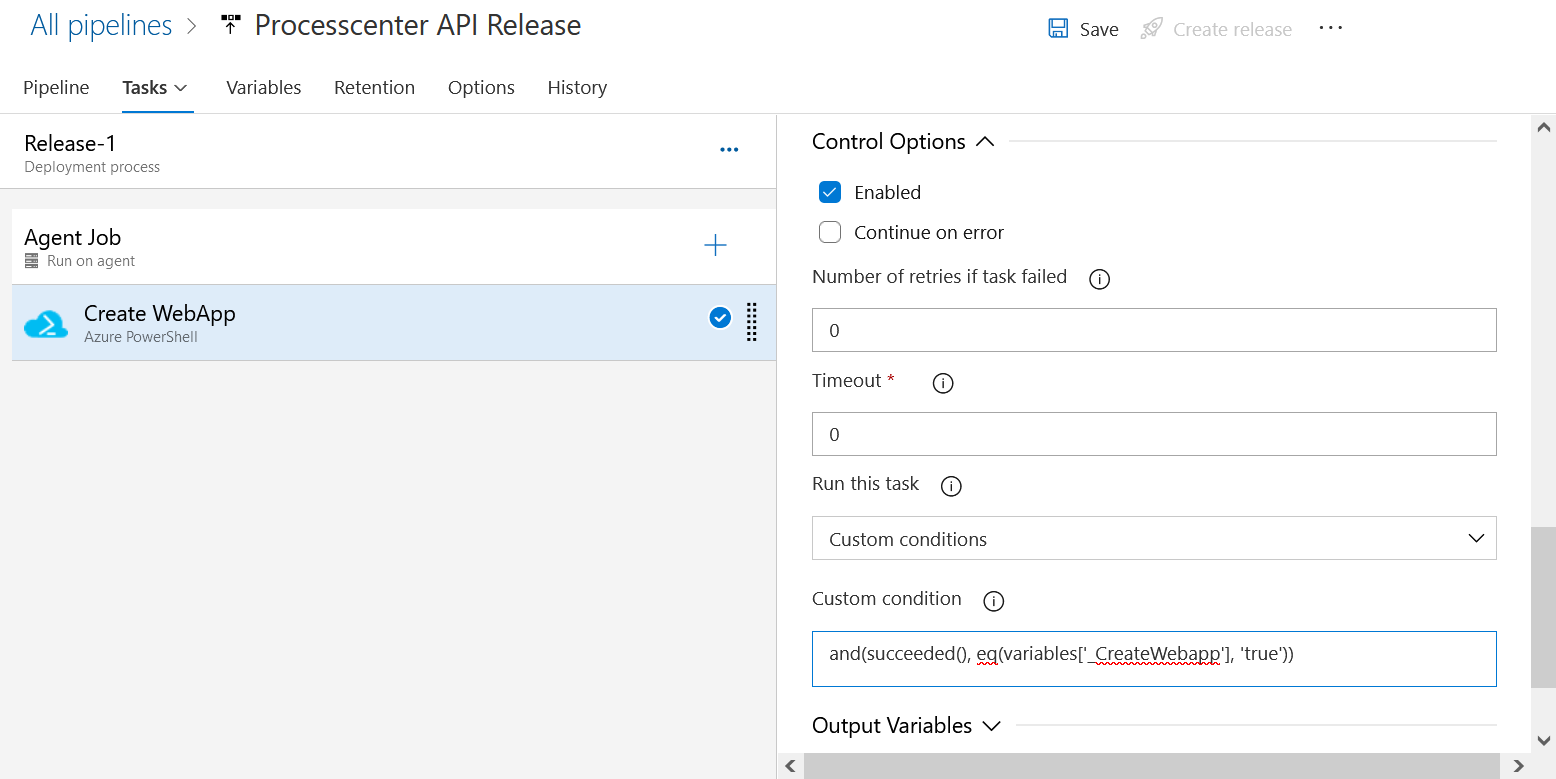
- Select Enabled under Control Options and add the custom condition.
and(succeeded(), eq(variables['_CreateWebapp'], 'true'))
Create Backup WebApp Build
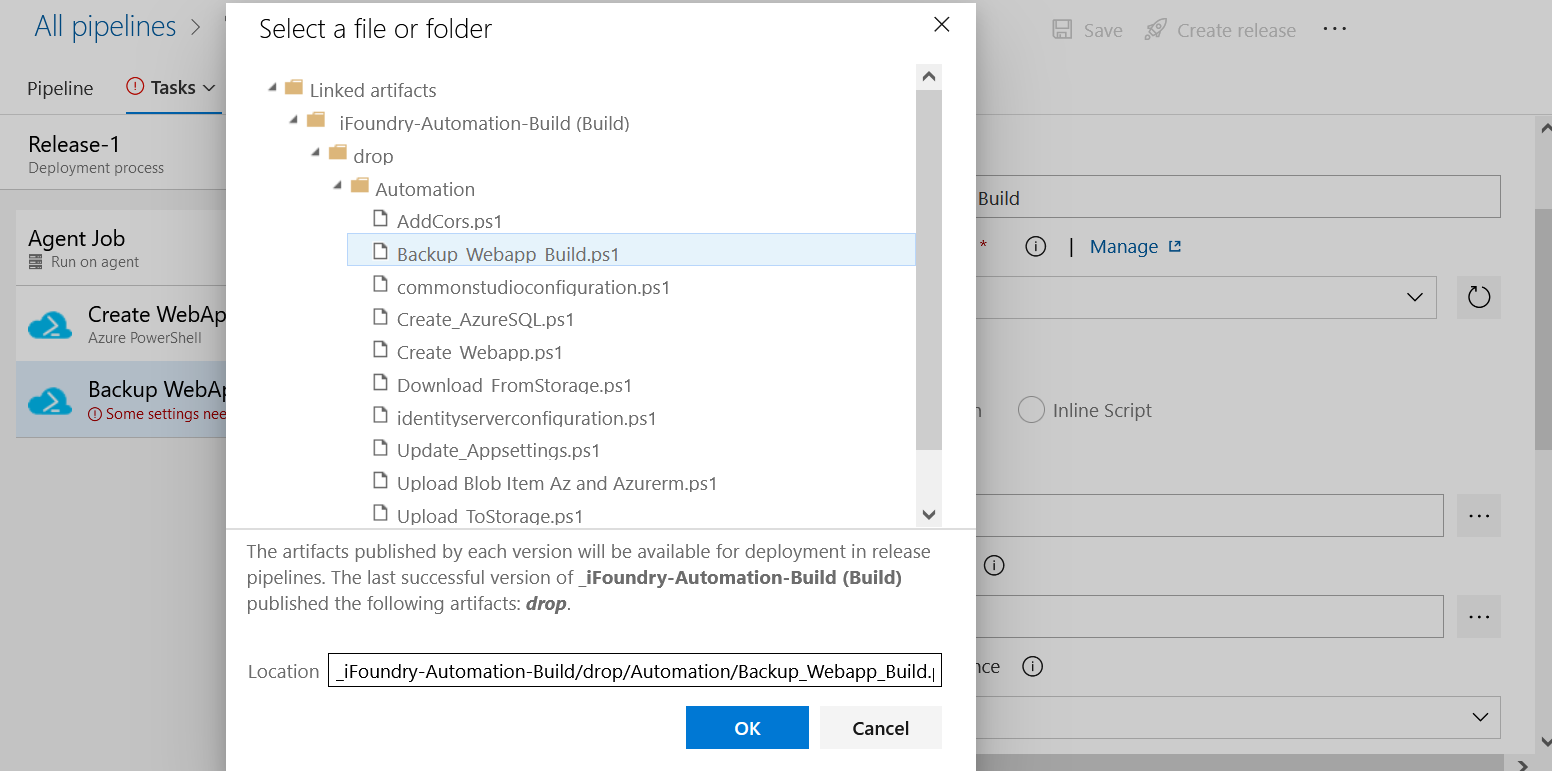
- Select Create Backup WebApp Build and the script path.
- Add the following script argument.
-WebAppName "$(AppName)" -StorageAccountName "$(StorageAccountName)" -StorageAccountkey "$(StorageAccountkey)" -StorageContainerName "$(StorageContainerName)" - Select the Latest installed version under Azure PowerShell Version.
- Select "Use PowerShell Core" under Advanced.
- Select Enabled under Control Options and add the custom condition.
and(succeeded(), eq(variables['BackupBuild'], 'true'))
Create Restore WebApp Build
- Select Create Restore WebApp Build.
- Add the script path and select Ok.
- Add the following script argument.
-RestoreFileUrl "$(RestoreFileUrl)" -StorageAccountkey "$(StorageAccountkey)" -FileExtension ".zip" - Select the Latest installed version under Azure PowerShell Version.
- Select "Use PowerShell Core" under Advanced.
- Select Enabled under Control Options and add the custom condition.
and(succeeded(), eq(variables['RestoreBuild'], 'true'))
JSON File Transform
- Select JSON File Transform.
- In the Target files text area, Select File format (JSON) and add
**/appsettings.json. - Select Enabled under Control Options and add the custom condition.
and(succeeded(), eq(variables['RestoreBuild'], 'false'))
Deploy Azure App Service Linux
- Select Deploy Azure App Service Linux.
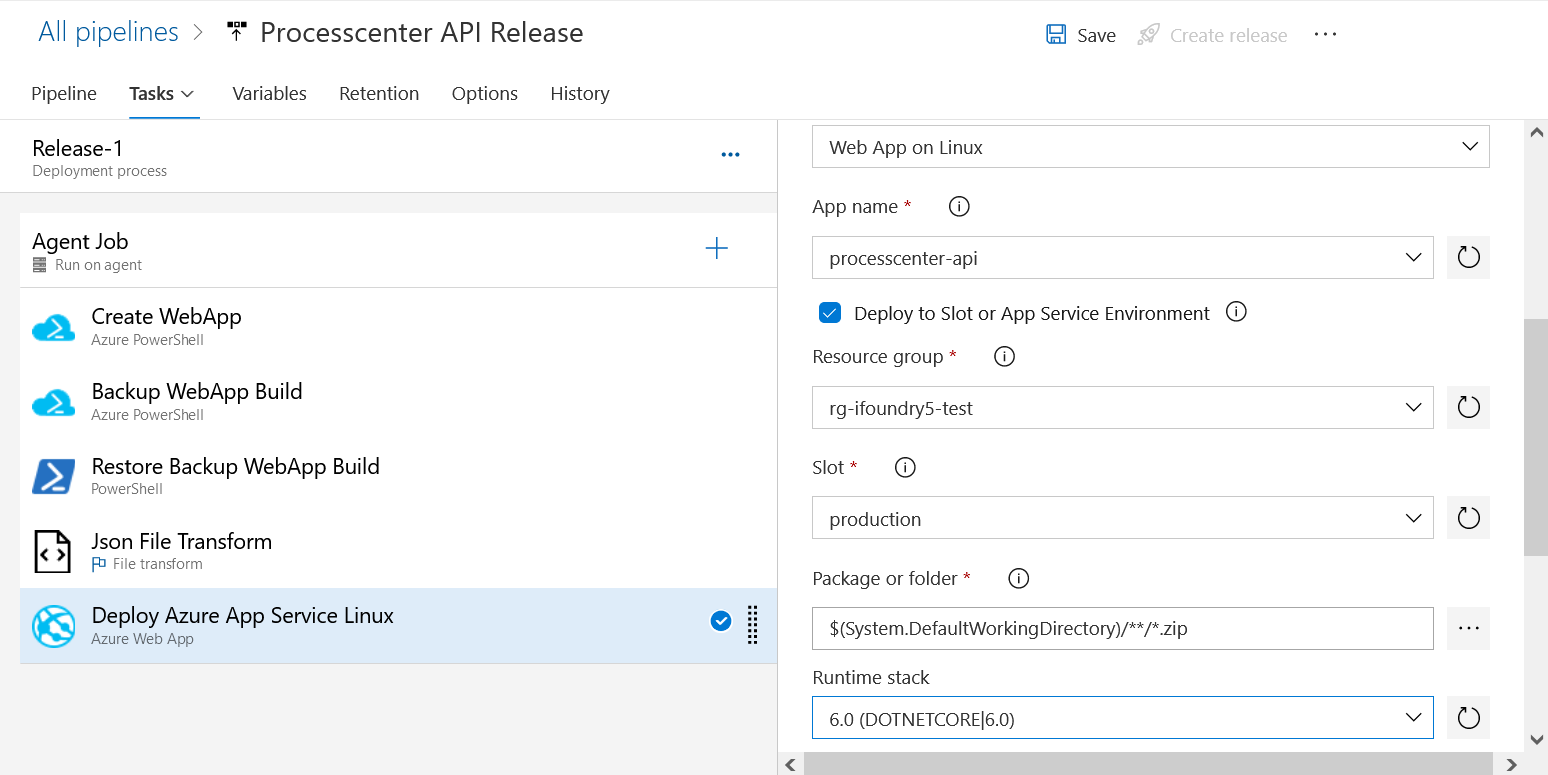
- Choose a subscription, App type, App name, Resource group, Slot, script path for the deploy service as shown in the image.
- Select "Deploy to Slot or App Service Environment".
- Select Enabled under Control Options and add the custom condition.
and(succeeded(), eq(variables['DeployEnvironment'], 'Linux'))
Azure App Service Settings
- Select Azure App Service Settings.
- Choose a subscription, App Service name, Resource group, Slot for the Azure app service.
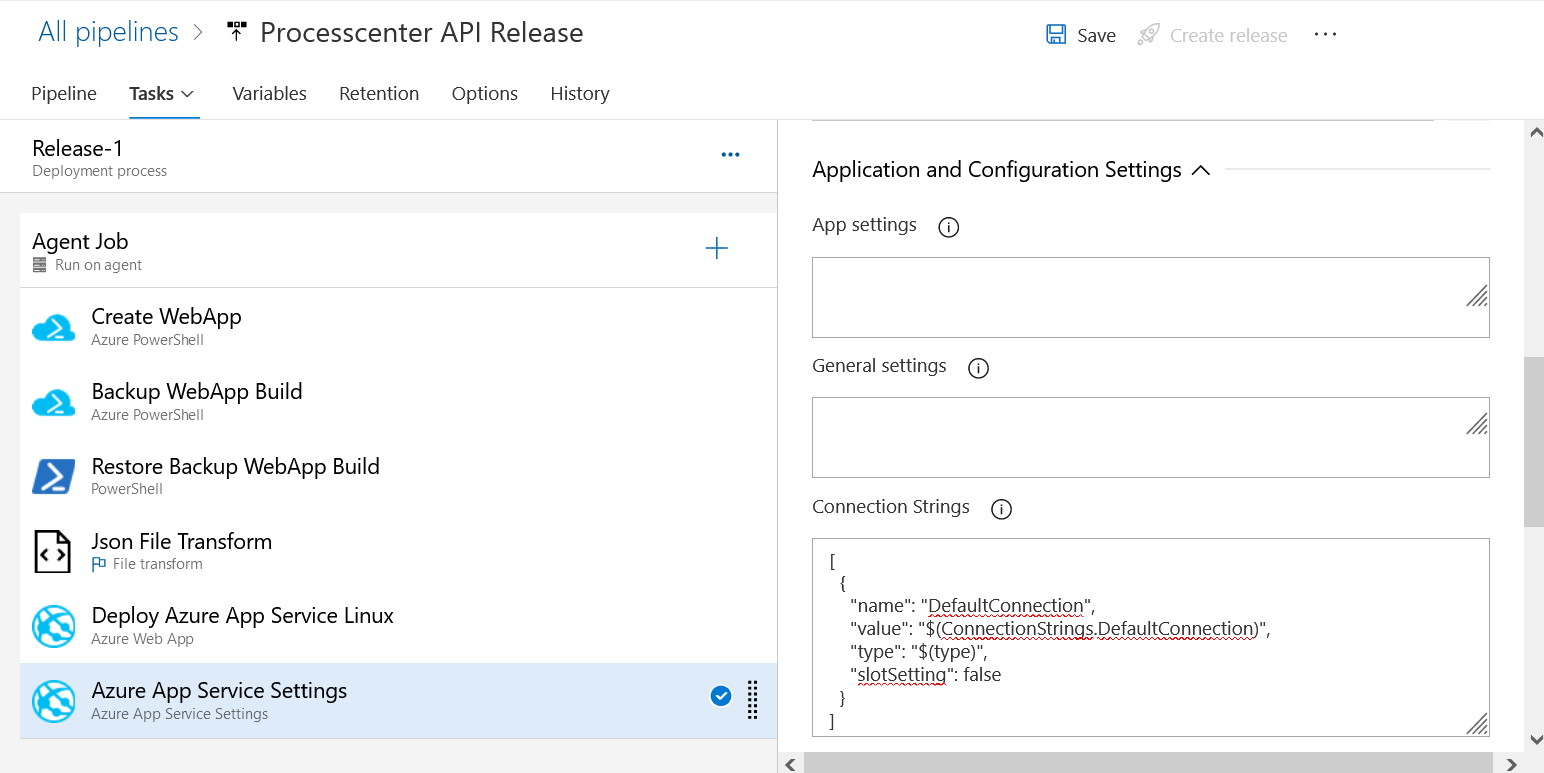
- Under Application and Configuration Settings > connection strings, add the following code.
[
  {
    "name": "DefaultConnection",
    "value": "$(ConnectionStrings.DefaultConnection)",
    "type": "$(type)",
    "slotSetting": false
  }
]
Restart Azure App Service
- Select restart Azure App Service.
- Choose a subscription, Action (Restart App Service) and App Service name for the Azure app service as shown in the image and select Save.