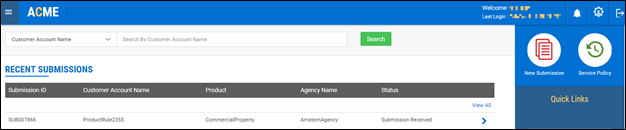
New Submission (Employee Portal)
You can create a Submission, capture information of customers, product information, and agency details, which can be used to create Quotes for various products within a Submission.
Only an Employee can create Submissions.
To create a Submission, click New Submission on the dashboard. You will be navigated to Customer Account Information screen.
You can create only one Quote for a product within a Submission.
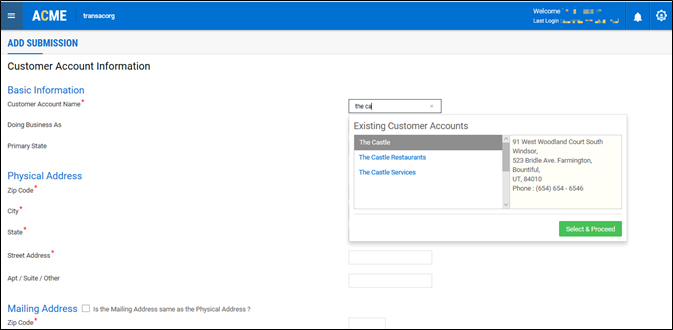
Customer Account Information
On this screen, you need to capture customer details such as basic information, product, and agent information.
As you enter the account information, the system suggests list of existing accounts that match with the first three characters you provide. You can view Customer Account Name, Physical Address, and Contact details on the suggestion window and choose the customer from the list of customers displayed or proceed with a new account.
If you choose any of the existing accounts, the account screen will be prepopulated (with the existing account information), and this information will be available in view mode. Also, the system validates if the account information already exists to avoid creation of duplicate accounts. If the account information such as 'Customer Account Name' and 'Physical Address' or 'Email Id', or 'FEIN', or 'Business Phone' match with any of the existing accounts, you will be alerted with a message, and the system suggests you to use any of the existing accounts. You can proceed to continue with any of the existing accounts or cancel to go back to the Account screen.
Once you click Create Submission, the application validates the submission based on three parameters:
- Customer Account
- Product
- Agent
For instance, if a submission already exists with the same customer account and product, but different agent, a popup will be displayed as follows:
"Submission is not cleared. Please contact your supervisor."
If you click 'OK', you will be navigated to the dashboard and Submission will not be created.
If you create a Submission that was already declined, a popup will be displayed as follows:
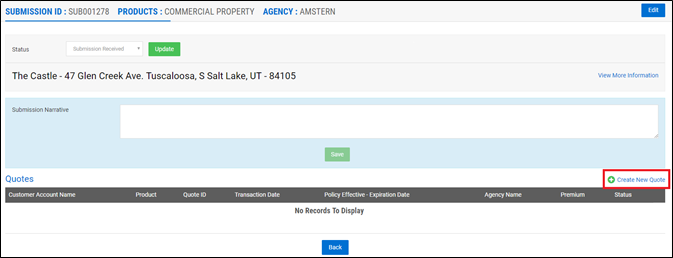
"A similar submission for this customer was declined earlier. Do you still want to proceed?". Upon successful creation of Submission, the following screen appears. You can create new quote through Create New Quote option. You can also view customer information through View More Information.
At the Status dropdown, you can manually update the status of Submission from the list of statuses.
You can also edit the Submissions (except the Submissions which are in 'Submission declined', 'Submission Complete', 'Submission Lost' statuses) by clicking Edit. You will be navigated to the Submission creation screen, where you can make the required changes.
When you proceed to create new Quote, the application redirects you to a series of screens, where you can capture details for creating Quote relevant to the product that you selected.
LOB
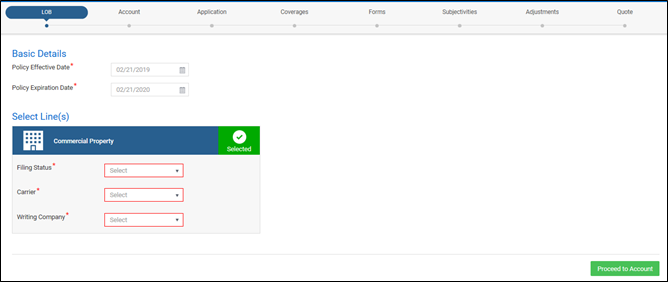
On this screen, you can set the effective date for your quote. When you set the Effective Date, Expiry Date gets updated with a date, which is exactly a year later than the effective date.
Once you provide the details, you will be navigated to Account screen.
Account
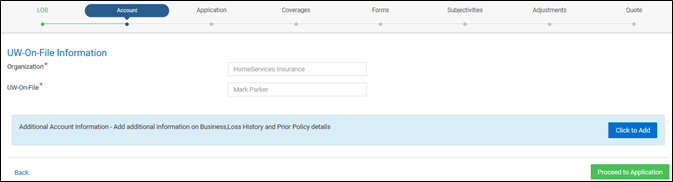
On this screen, you need to provide the details such as Organization and Underwriter-on-file.
You can also add additional account information of the customer such as Additional Interest, Loss History Details, Prior Policy Info through Click to Add option.
Application
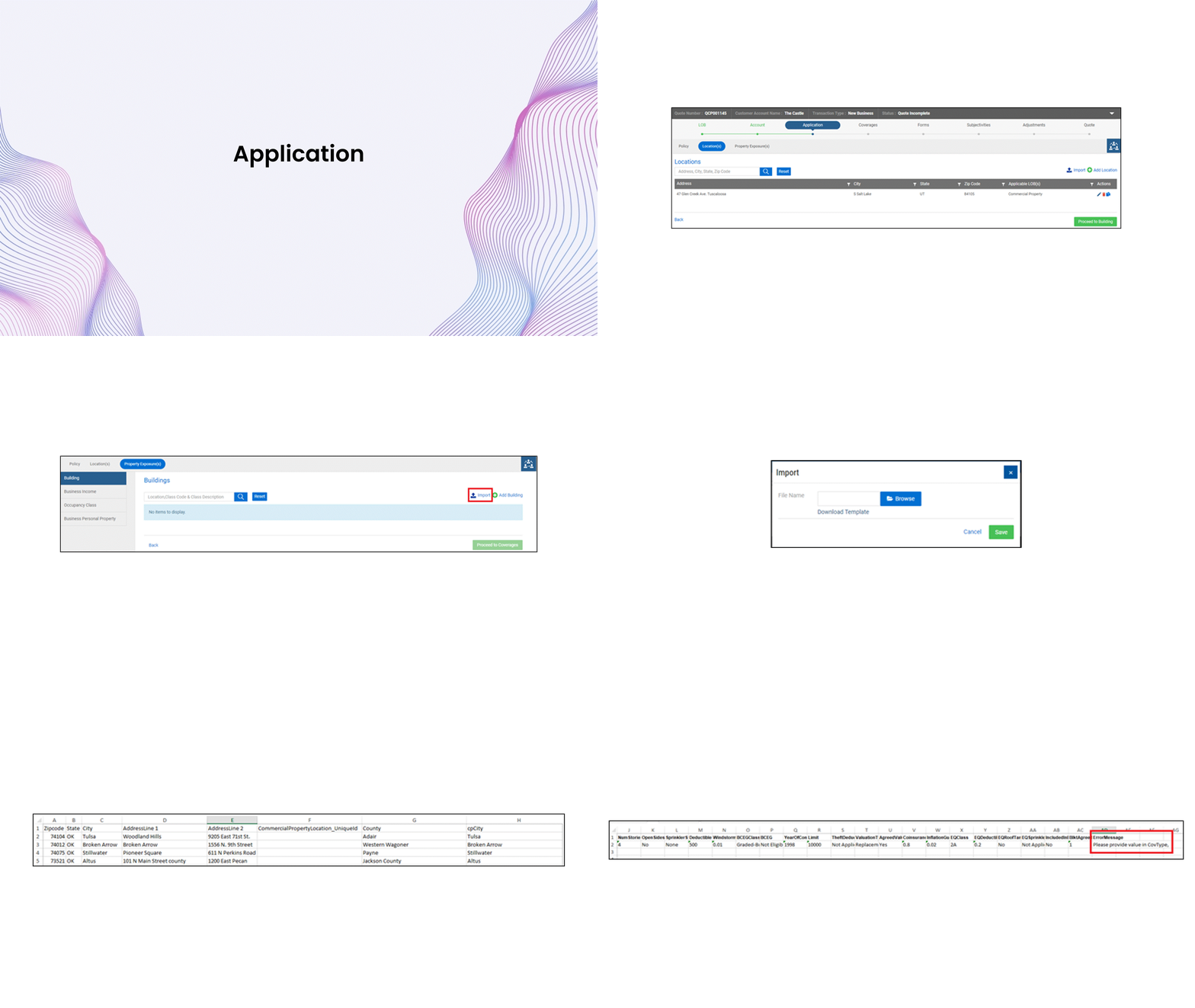
On this screen, you need to provide Policy information and Risk information. For e.g., Location details and Property exposure details in case of a Commercial Property insurance.
Once you provide Policy and Location information, you can proceed to Property Exposures, where you can add details such as Building, Business Income, Occupancy Class, and Business Personal Property.
You can add the risk details manually through the Add <Risk> icon at individual risks. Example Add Location as shown in the figure above. (or) You can upload multiple risks such as Building, Business Income, Occupancy Class, and Business Personal Property at a time through Import as shown.
To import risk details such as Building, follow these steps:
- Click on the Import button. The Import pop-up window displays.
- Click Download Template.
- Open the template and provide the risk details alongside the columns. The downloaded excel displays parent risk with summary parameters and parent unique Id along with current risk unique id as shown above.
- Once the details are provided, you can import the template by clicking Import.
Ensure that the data that you provide in the master data columns of the template is case-sensitive, which will otherwise, not import the risk details.
If you do not provide valid data into the excel while importing, validation messages will be displayed under the following scenarios:
- Valid data or mandatory fields are not provided in any of the columns.
- Any column (except the predefined columns) is removed or added in the excel template, but not in the configured XML.
- Child risk details are imported directly before importing parent risk details.
In any of the above three scenarios, appropriate validation message will be displayed. A sample file is shown below for reference.
You can correct the errors and again import the excel to upload final values. Once you correct the data and import the excel, data will be uploaded on the UI.
You can modify, delete, or copy the risk details through  ,
,  ,
,  icons respectively displayed at each record.
You can now navigate to the next screen by clicking Proceed to Coverages.
Coverages
Here, on the left pane, you can view the list of risks that you chose in the Application screen. You can select coverages for each risk.
Once you provide all the coverage details for a risk, a unique icon  is displayed against that risk indicating that you have provided adequate details. Otherwise, the application prompts you to provide additional details through a separate icon
  to complete the quote processing.
Each risk has a dropdown on the left pane, where you can select the corresponding parent risk and provide the coverage details.
For example, you can select the corresponding parent risk for Business Income such as Location and Building as shown.
While providing the coverage details, ensure that you select the corresponding parent risk and save the details as shown in the figure below.
If you do not provide coverage details for any of the parent risks, the application does not allow you to proceed further.
Once all the details are saved successfully, click Proceed to Forms.

Forms
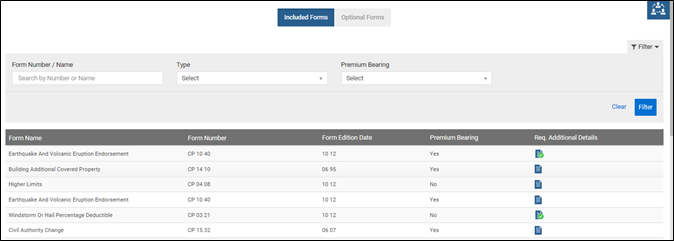
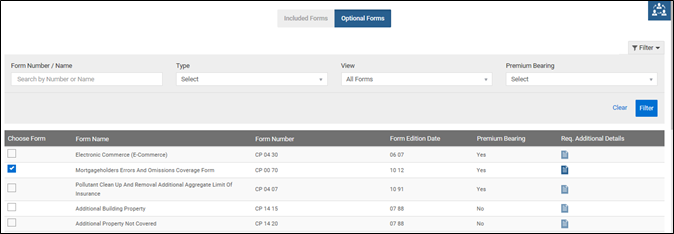
On this screen, you can view Mandatory forms that have been attached based on the risk details provided. However, the application displays set of Optional forms, which can be selected by the user. Provide the details in Mandatory and selected forms by clicking on 'Req. Additional Details' icon.
You can filter the Mandatory forms based on Form Number/Name, Type, and Premium Bearing details. You can select Optional forms based on the risks or coverages. You can filter the Optional forms based on Form Number/Name, Type, View (selected/submitted) and Premium Bearing details.
The application does not allow you to proceed to the next screen without providing details for all the Mandatory forms and selected Optional forms.
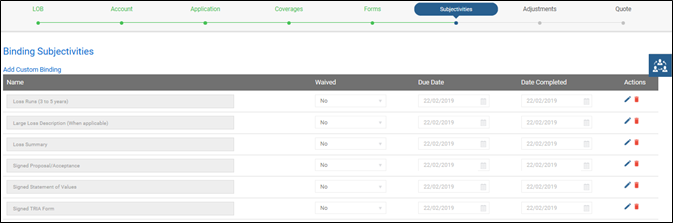
Subjectivities
Subjectivities is basically a checklist. On this screen, you can ensure if all the information and the required documents that are needed for policy bind are captured.
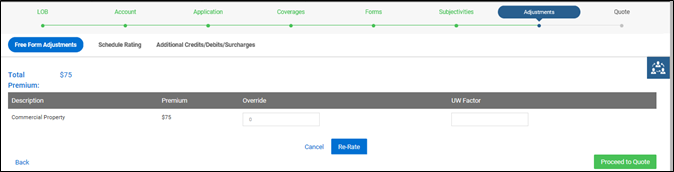
Adjustments
On this screen, you can view the premium and override the premium through Free Form Adjustments tab as shown.
Through Schedule Rating, you can re-rate the premium based on various parameters. Through Additional Credits/Debits/Surcharges, you can increase or decrease the premium based on various factors or impose additional charges.
Quote
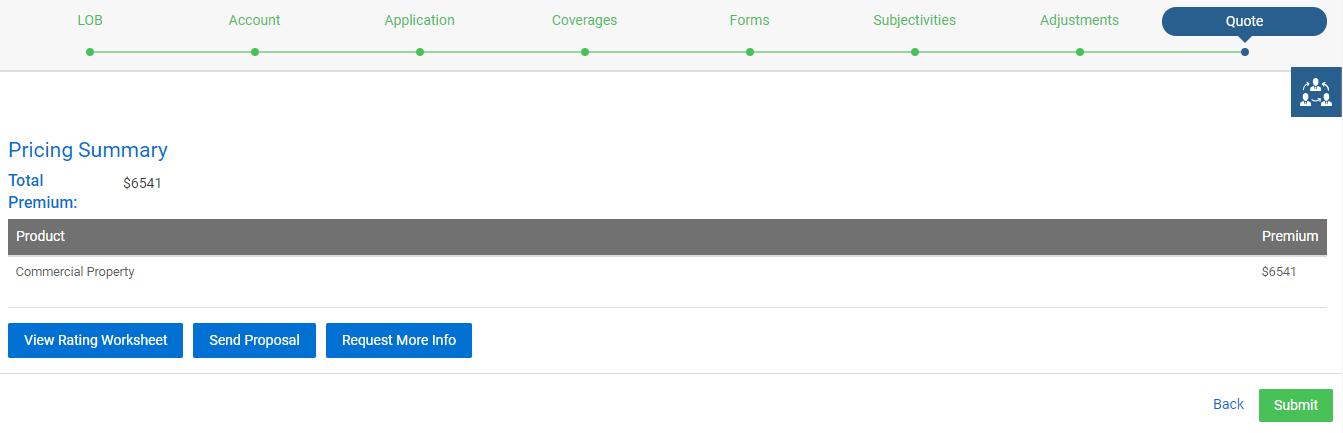
You can view the final premium on this screen and download the Rating Worksheet.
Request More Info will change the status of the quote to Request More Info. The underwriter can contact the agent and capture required information.
Click Submit to proceed with the quote and the policy number will be generated.