Automation Process
To deploy Azure resources, follow these steps:
- Make sure that the following softwares are deployed:
- PowerShell latest version
- Azure SDK latest version
- Supported Operating System Windows 7 and 8
- Copy the release folder to your local machine from FTP path.
- Run Infra and deploy powershell scripts to create BizDynamics components.
Infra Creation
To create Infra, follow these steps:
-
Open the run command.
-
Enter Powershell_ise and click Enter to open the PowerShell ISE window as administrator.
-
Navigate to the copied folder path in the PowerShell. (Powershell cmd: cd "C://<<Folder Path>>").
-
Provide the parameters in the below command, a sample is shown for reference:
.\InfraScript.ps1 -CompanyPrefix "<<sample>>" -ProjectPrefix "<<us>>" -InstanceSuffix "<<poc>>" -VesrsionSuffix "<<v13>>" -Location "<<East US>>"- Company Prefix, provide the prefix for the name of your company
- Project Prefix, provide the prefix for the name of the project
- Instance Suffix, provide the prefix for the environment details such as QA, Dev, and UAT
- Version Suffix, provide the version that you are using
- Location, provide the location of the resources
importantThe given command is a single line command. Use the complete command while executing.
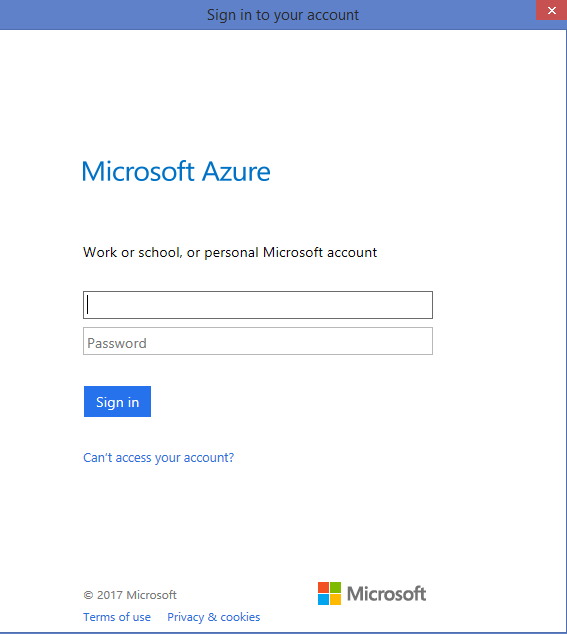
The window with the login page of Azure appears.
-
Provide your login credentials. After successful authentication, the creation of Infra begins.
-
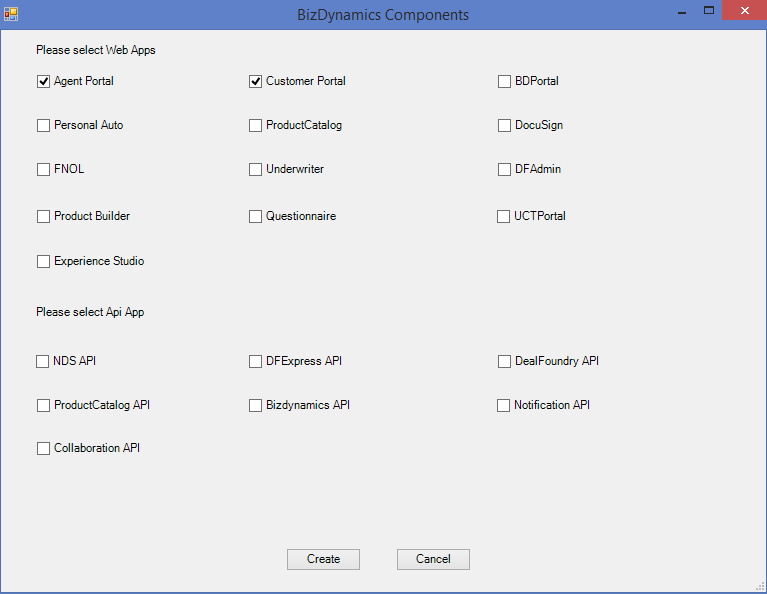
Select the BizDynamics components (API app and Web app) you wish to deploy. On successful deployment, Infra Created message appears on the screen as "Successfully Created Infrastructure for BizDynamics Components...".
Process
To deploy BizDynamics Components, follow these steps:
- Open the run command.
- Enter Powershell_ise and click Enter to open the PowerShell ISE window as administrator.
- Navigate to the copied folder path in the PowerShell. (Powershell cmd: cd "C://<<Folder Path>>").
- Provide the parameters in the below command, a sample is shown for reference:
.\DeploymentScripts.ps1 -resourceGroupName "sample"The window with the login page of Azure appears. - Provide your login credentials. After successful authentication, the deployment of Azure resources begins.
- Select the BizDynamics components (API app and Web app) you wish to deploy. On successful deployment, a appears on the screen as "Deployment Completed...". Ensure that all the components are successfully deployed in the Azure portal.