Configuring Azure Resources
To configure Azure resources, follow the below sections.
Create Resource Group
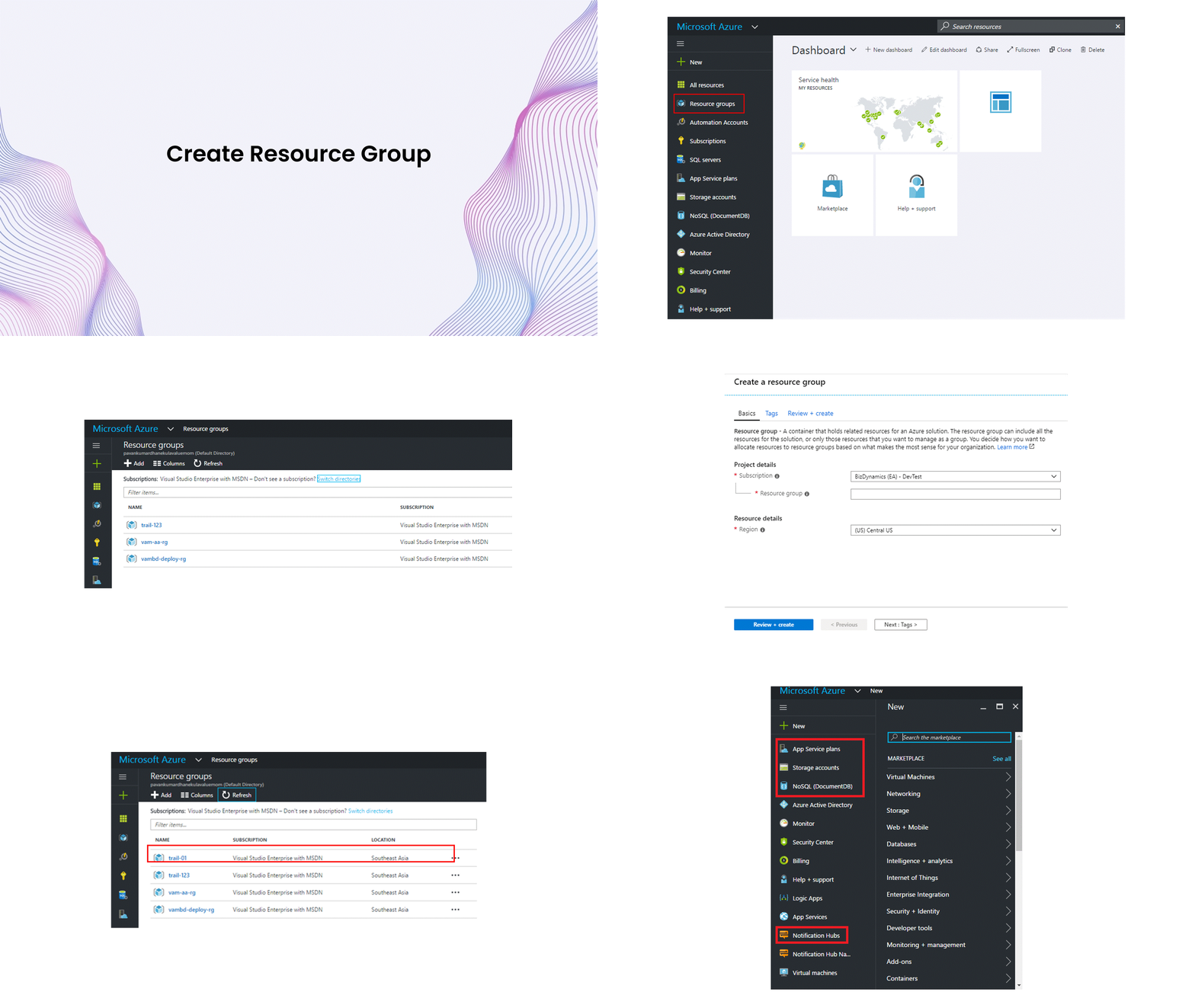
To create Resource Group, follow these steps:
- Login to Microsoft Azure (https://portal.azure.com/) using your login credentials.
- On the left pane, click Resource groups.
- Click Add.
- The Resource groups screen appears.
- Type the Resource group name and select the appropriate Subscription and Resource group location and then click Create.
- Resource group is created now. To create App service Plan, Document DB, Storage/Containers & Blobs, follow the above steps. These apps are highlighted in the image shown.
Create SQL Database
To create SQL database, follow these steps:
- In the dashboard, from the left pane, scroll down and click More Services.
- Search for SQL Server and then from results, click SQL servers.
- Click Add.
- Provide the required details to create the database. You can either create a new Resource group or use an existing Resource group.
- Click Create.
- Click on the Notifications icon to confirm if the deployment is successful. The screen with the list of databases appears. The SQL database is created.
- Click on the New database. Provide the database details and click OK. The database will be created.

Create Web Apps
To create web apps, follow these steps:
- Click New in the left pane of the dashboard.
- In the search box, type webapps.
- Click Web+Mobile and then click Web App.
- Provide the required details for the creation of the web app. You can either create a new Resource group or use an existing Resource group.
- Click Create. The App Services screen with the newly created web app appears.
note
Use Filezilla to deploy web apps and API apps.

Create API Apps
To create API apps, follow these steps:
- Click New in the left pane of the dashboard.
- Click Web + Mobile.
- The Web + Mobile screen appears.
- Click See all and type API App in the search box.
- Click API App and then click Create.
- Type the App name and provide the required details for the creation of API app. Click Create. You can either create a new Resource group or use an existing Resource group.
- Click on the Notifications icon to confirm if the deployment is successful.
- Click App Services on the left pane. The App Services screen appears with the list of API apps. Click on the newly created API app.
note
Use Filezilla to deploy web apps and API apps.

Create Logic Apps
To create Logic apps, follow these steps:
- Click Logic Apps in the left pane of the dashboard and then click Add.
- Provide the required details to create Logic App. You can either create a new Resource group or use an existing Resource group.
- Click Create. Logic app is deployed successfully.

Create Logic Apps for SMS and Email
To create Logic apps for SMS and Email, follow these steps:
- Once the Logic apps are created, the Logic Apps Designer screen appears.
- Click Edit.
- To configure the app for SMS, click Send Message.
- To configure for Email, click Send Email.

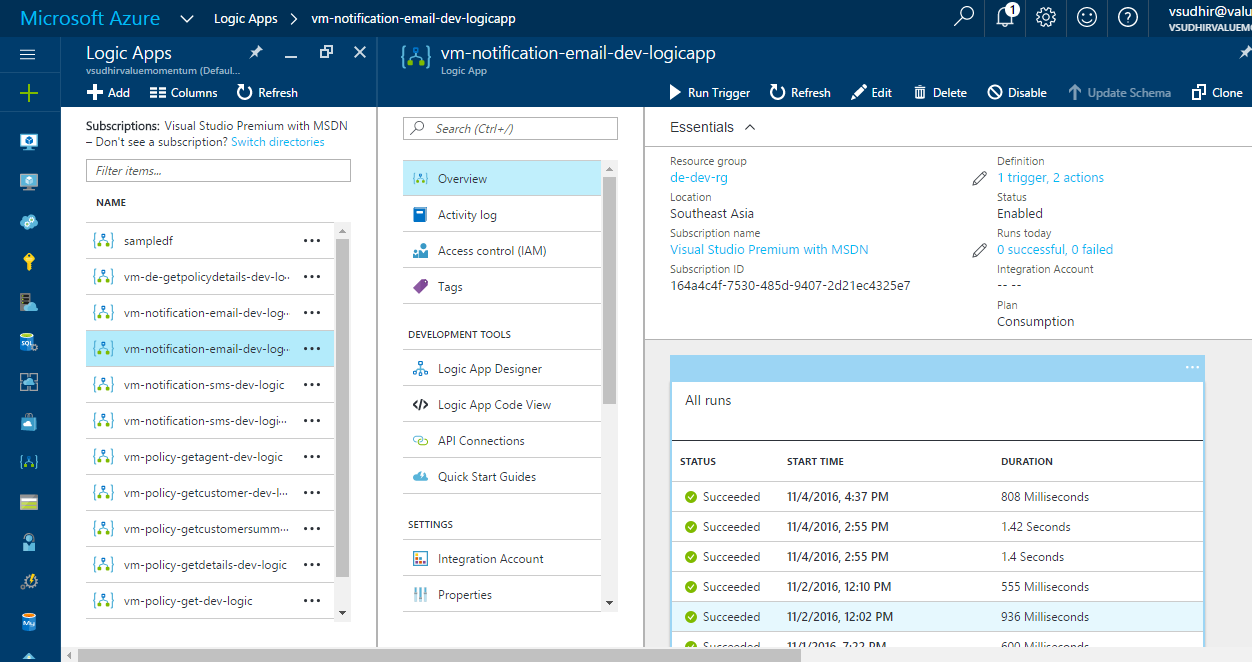
Create Logic Apps with Run Details
The figure for Logic app with Run details is shown in this section.
Create Virtual Machine
To create Virtual Machine, follow these steps:
- Click Virtual Machine in the left pane of the dashboard.
- Click Add.
- Type Windows Server 2012 R2 Datacenter in the search box.
- Click on Windows Server 2012 R2 Datacenter and then click Create.
- Provide the required details of the app and click OK. The Choose a size screen appears.
- Choose the appropriate size of the app and click Select. The Settings screen appears. Click OK. The Create virtual machine screen appears.
- Click Settings and then click OK. The Summary screen appears. The virtual machine is successfully deployed.